Every feature of the plugins on one example. Follow the steps in order; the pictures show what you should see.
n = int(input())
a = [0] * n
for i in range(n):
    a[i] = int(input())
x = int(input())
lo = 0
hi = n - 1
found = -1
while lo <= hi:
    mid = (lo + hi) // 2
    if a[mid] == x:
        found = mid
        lo = hi + 1
    elif a[mid] < x:
        lo = mid + 1
    else:
        hi = mid - 1
print(found)
8
1
3
4
7
8
10
12
15
12
1. Run and the input
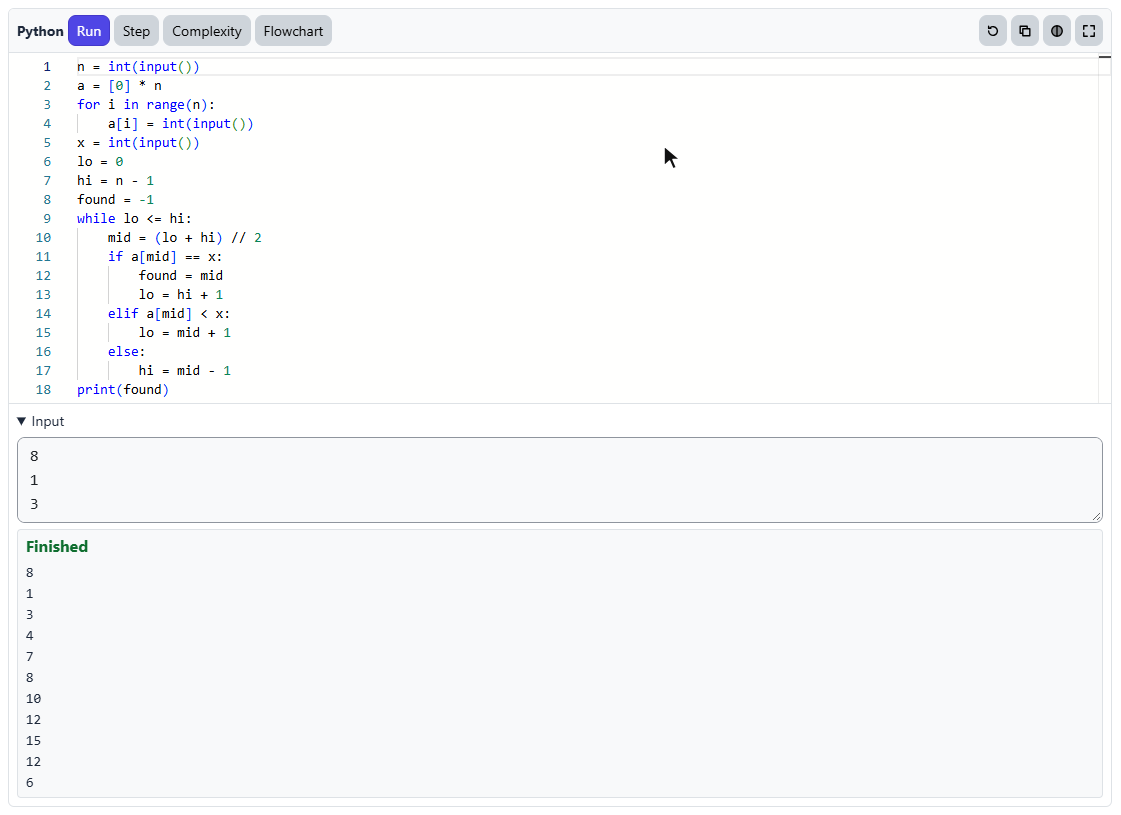
The example below is a binary search in Python (it runs in the browser). The input is filled in: 8 sorted numbers, then the number to find. Click Run; the output is in the console. Without the input the program asks for each number while it runs.
2. Step, breakpoints and the debugger
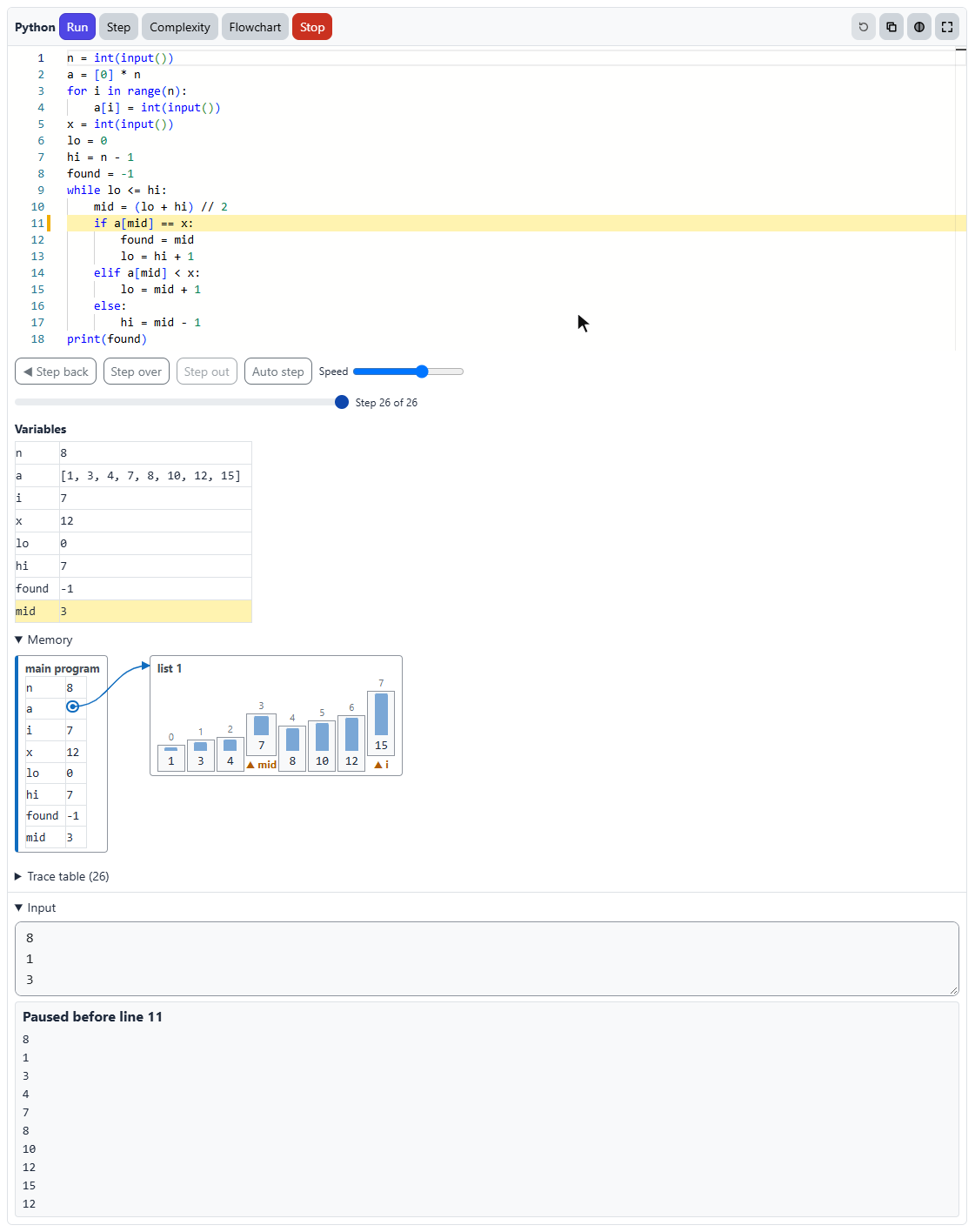
Step runs line by line: the next line is marked and the panel below shows the variables (changed ones are yellow), the call stack and the trace table. A click left of a line number sets a breakpoint. C and C++ do the same on the server (gdb).
3. Step back and the timeline
◀ Step back and the slider “Step N of M” show an earlier step: the marked line, the variables and the console as they were then. After the end the slider goes over the whole run.
4. The memory view
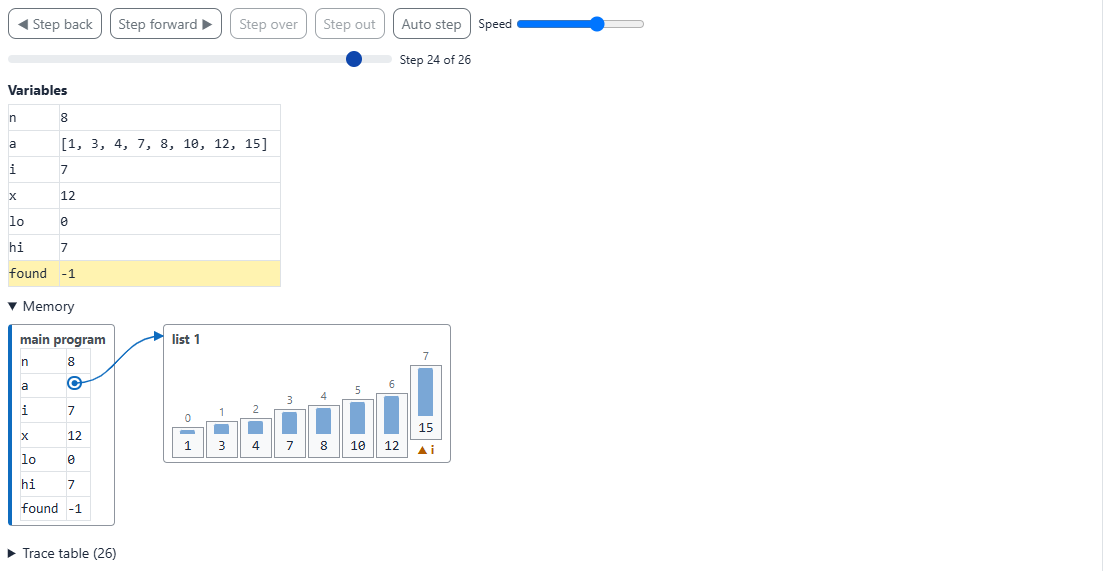
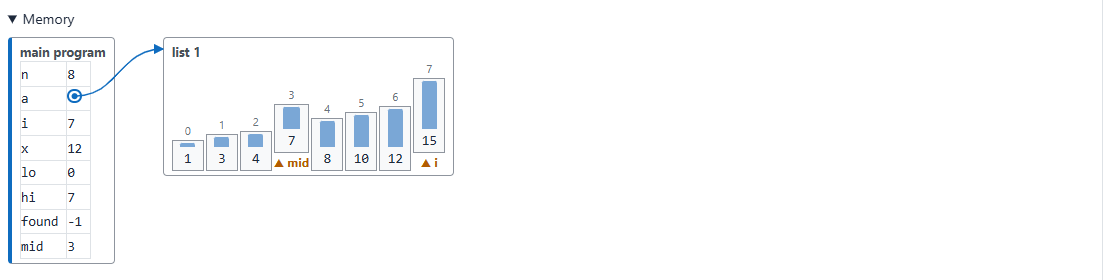
Memory shows the array a as cells with bars; lo, hi and mid stand under their cells, and the cells a step changed are green. Python objects and lists get arrows (two names of one list point to the same box).
5. Flowchart
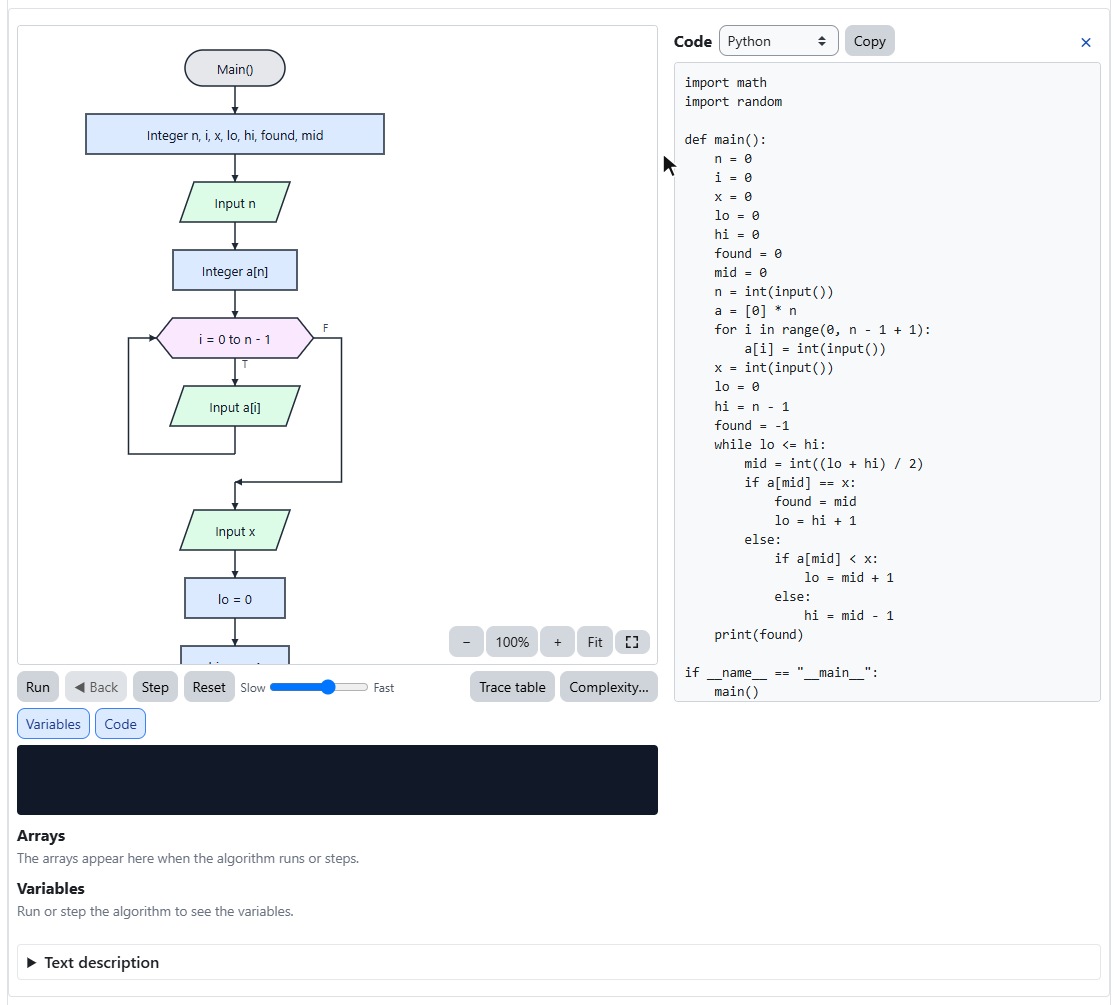
Flowchart draws the same program as a flowchart (the algorithm plugins), which runs step by step with its own arrays panel.
6. Complexity, Parsons, SQL
Complexity measures the lines a program runs for n = 10 … 500 (try the page “Complexity”: bubble sort O(n²) against merge sort O(n log n)). The quiz “Parsons problems” gives the shuffled lines of the solution; the SQL pages run on a MariaDB database.
7. For teachers: the class view
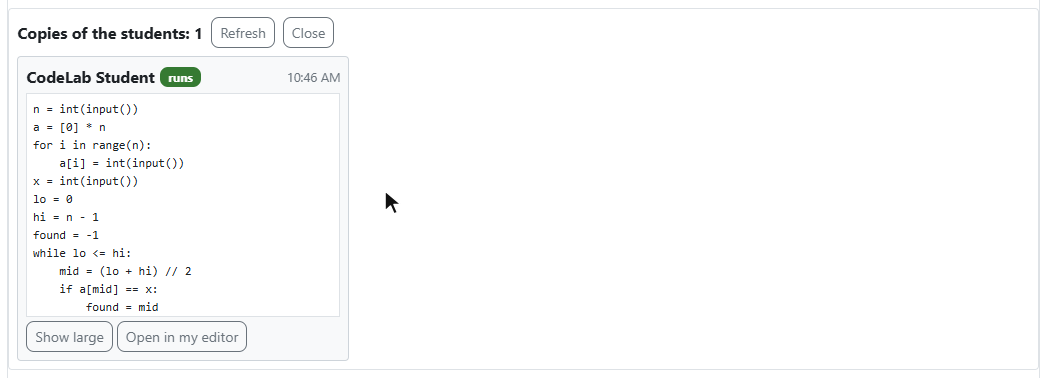
When students change and run an example, the teacher gets a Class button: cards with the code of each student and a runs / error badge, Show large for the projector and Open in my editor. Log in as teacher and as student in two windows and try it.