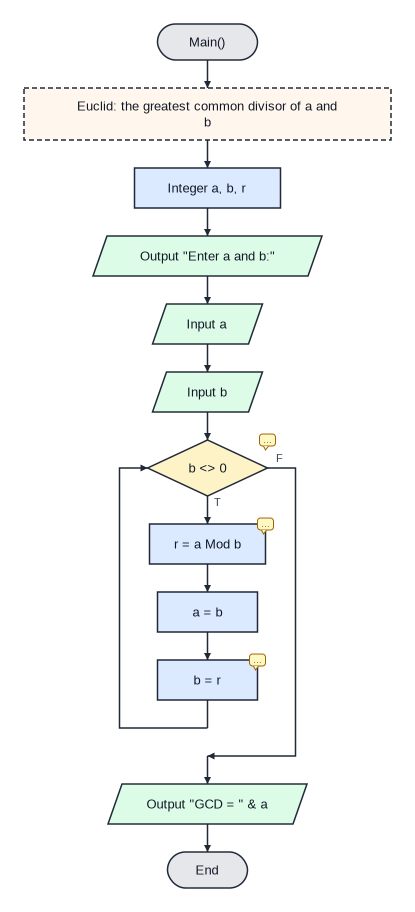
Every block can carry a short comment that explains it. It is shown as a small bubble beside the block; the Comment block puts a note of its own into the diagram.
Student
- Hold the mouse over a bubble beside a block: its comment opens.
- Turn on the Comments switch under the diagram: the bubbles get numbers and all comments are listed under the diagram.
- Run the algorithm with a = 48 and b = 18 and read the comments while the loop runs.
Teacher
- In the editor (the Algorithm button of the text editor) click a block; the panel beside the diagram has the field Comment.
- For a heading or a longer note insert the Comment block with the + sign.
- Comments go into the generated code too, as comments of the chosen language.